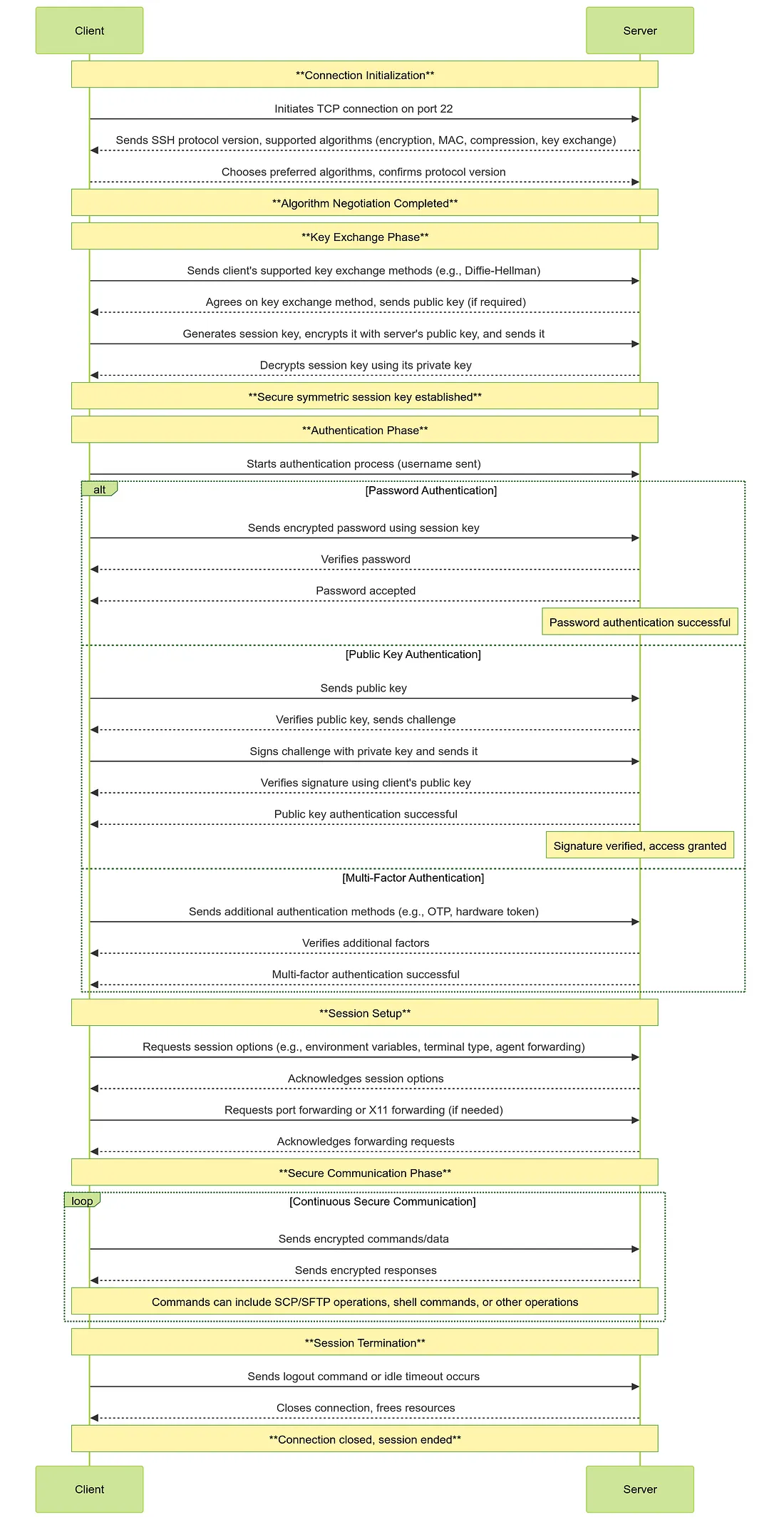
 this is the whole process of SSH lets see how it works from the moment you
 ssh username@target till you get a shell
recap: What is SSH ? SSH (Secure Shell) is a network protocol that lets you securely connect to and manage remote systems over an unsecured network
the idea itself wasn’t new but the difference between SSH and other protocols applied remote connection is data security
we will split the process into phases just for easier clarification
0 Pre Connection Phase (no packets sent yet)
there is usually two files /etc/ssh/ssh_config and ~/.ssh/config and these are the SSH configuration files and the difference between them is the first one is system-wide default file and the other one is per user that you can define custom shortcuts for connection or instruct the ssh to use certain features or settings so there is 2 blocks → HOST block and MATCH block
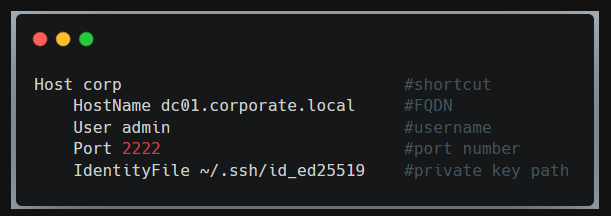
- Host block which defines settings for specific hosts as you can see so instead of using
ssh -p 2222 admin@dc01.corporate.local -i ~/.ssh/id_ed25519I will just usessh corpand it will do the magic for you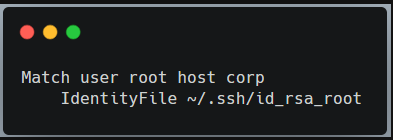
- Match block which applies certain option if the condition satisfied so in the last example if you tried to connect to the host
corpbut with the user root it will use another private key not the one defined in corp Host block
this isn't IT-related writeup so i won't talk more about configuration but you can read more here SSH config files
- once you type
ssh username@targetto get SSH session - the SSH reads
- system-wide config file that is set for all users
- user-specific config file that overrides the global defaults
- command line options which overrides both configs
- checks for existing control master connection
- it is a feature that allows multiple SSH connections to the same host to reuse a single TCP+SSH connection
- so if you
ssh targetand then later did an otherssh same_targetit will create session over the master connection (first one) so you won't do another handshake, or enter the password again - to enable this option you can use
ControlMaster autoin the config file
- Resolve real hostnames, user, port, keys, features or options
1 name and route resolution
so once the first phase is done the client knows Hostname, Port, User, options so here is what happens now
- Hostname Resolution
- SSH calls
getaddrinfo()which triggers Name service switch under/etc/nsswitch.confwhich might check hosts file, DNS viaresolv.confor other options depending on the system until we get an IP
- SSH calls
- Proxy Handling
- if
ProxyCommandorProxyJumpin configured SSH won't connect directly it will launch proxy command or opens a channel through jump host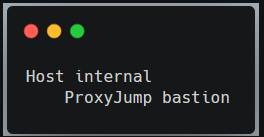
- for example to connect to internal the SSH will connect to bastion first and inside that session it will open direct TCP/IP channel to internal
- if
- Networking Stuff
- SSH decides which NIC will be used to route, then do full TCP Handshake to the chosen port (default 22)
- if port is closed you get connection refused, if port is filtered it will hangs which will get timeout eventually
- if open will see next
2 SSH Transport Layer
this is a critical phase for data integrity upon what comes next, it would be much better if you know a little about DH algorithm so take a peak here 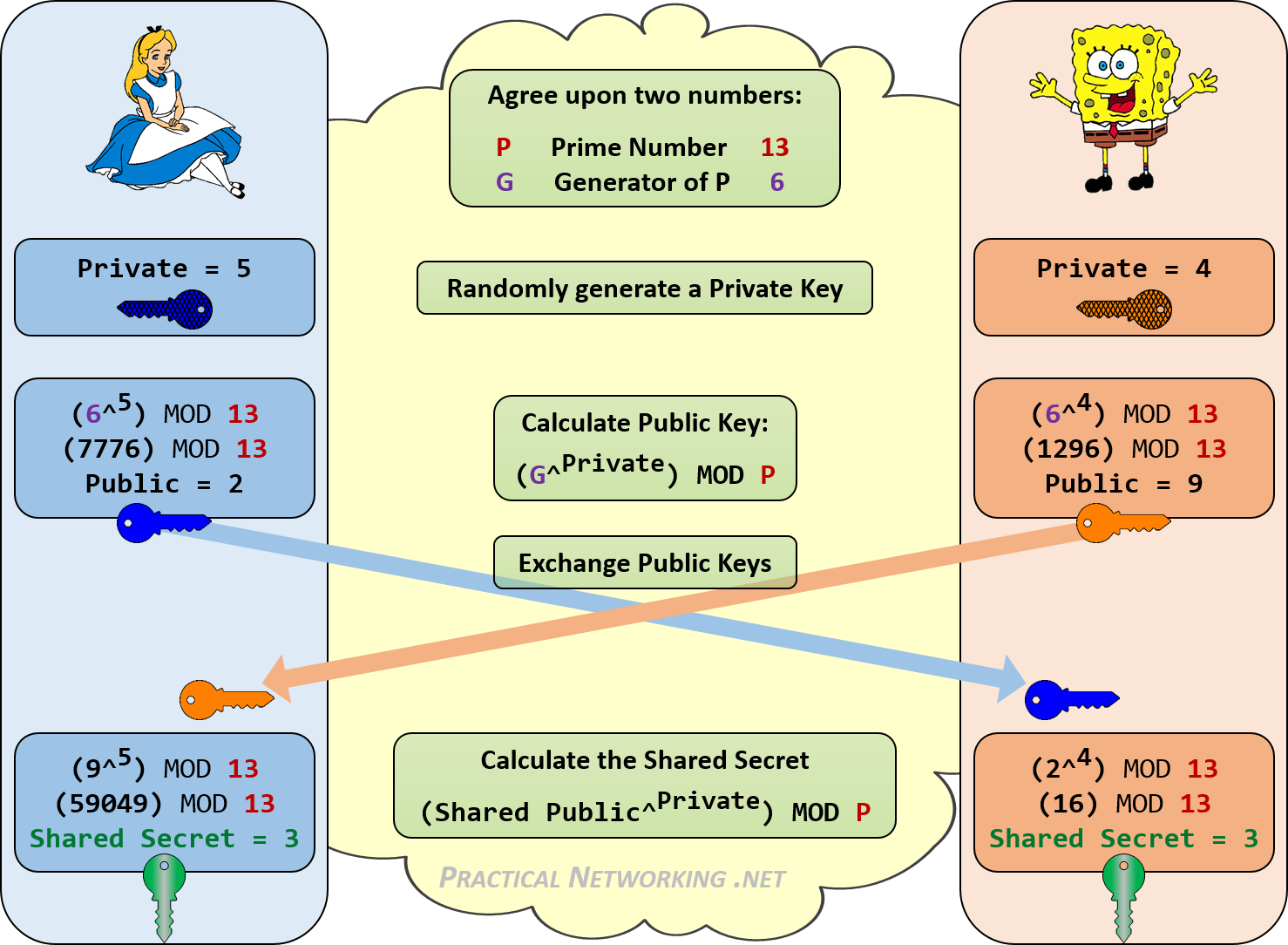
both sides exchange their banner (version string) in plain text to confirm the compatibility of SSH version on both sides mostly SSH-2
then they start negotiating Algorithms
- Client sends KEXINIT packet listing support algorithms for KEX(most likely DH algorithm) , Host key algorithms, Ciphers, MACs, Compressions
- server responds with its own KEXINIT packet
- Both sides pick first mutually supported option in each category
now comes the real KEX (key exchange) -so important to read about DH-
- using the chosen Algorithm the client and server will
- exchange parameters
- each calculates a shared secret K
- derive session key from K + some random values from both sides
- now we have Encryption keys, and MAC keys (will get to the difference later)
- using the chosen Algorithm the client and server will
Server Host Key Verification
- this step is crucial to prevent MITM attacks
- the server sends its public host key and proves it controls the private part by signing KEX data
- client checks host against
~/.ssh/known_hosts,/etc/ssh/ssh_known_hostsif not found user gets prompt like this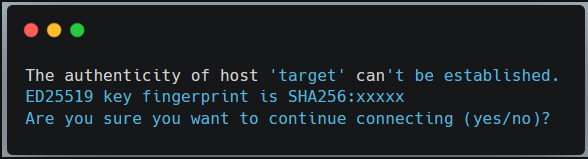
- if the prompt accepted, the key will be stored in known hosts file
- how does that help with MITM attacks ?
- when you connect to a certain server for the first time you will get an authenticity prompt if you accept it the host will be saved in known hosts and later if attacker tried to capture the packets in between and change the server's public key with his own key to trick you to connect to his server instead of the real server you will get a new authenticity prompt but you know that the server is already a know host you will figure that it might be the attacker
Deriving Session Keys
- both sides now compute the session ID which will be used later in authentication steps
Client sends NEWKEYS message and server replies with NEWKEYS message
- it's a special SSH protocol message that tells the other side "I'm ready to switch from cleartext to the derived session keys"
- the session keys mostly are the Encryption keys, and the MAC keys
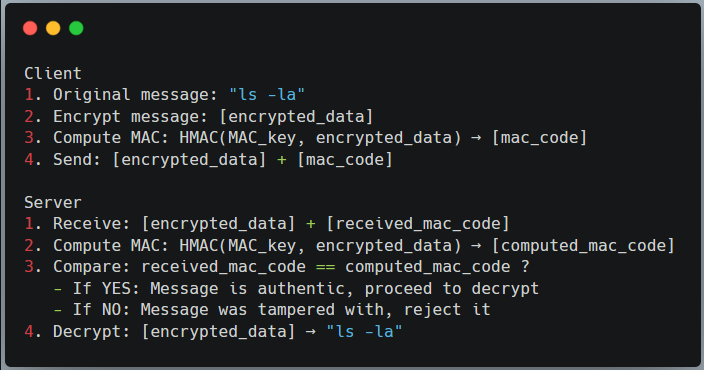
what is the difference between Encryption Keys, and MAC keys ? after NEWKEYS message sent they are both used with every single packet but for different purposes both keys are symmetric Encryption Key → used for confidentiality by encrypting message before sending and decrypting after arrival MAC Keys → used for authenticity and integrity for each packet by adding a fingerprint to each encrypted message
and this steps happens with each packet from now on
3 User Authentication
now the tunnel is secure we need authenticate
the whole reason we were doing up there just to make sure that if anyone sniffs the packets will see encrypted packets instead of plain text
in this phase we have different authentication methods but i will go through Public-key and password only
the core ssh messages in this phase is USERAUTH_REQUEST to authenticate with method publickey or password or others
and there is USERAUTH_SUCCESS authentication succeeded
and USERAUTH_FAILURE authentication failed and server suggests different authentication method
Password authentication
this one is pretty simple
- Client sends
USERAUTH_REQUESTwith methodpassword - Server Validates password using its authentication backend: local will be
/etc/shadowin domain-joined will use PAM (chained with LDAP, Kerberos, etc) - server might
- reject and allows retry up to the value
MaxAuthTries - or Ask for password change if expired
- or let you in because credentials are valid
SSH_MSG_USERAUTH_SUCCESS
- reject and allows retry up to the value
the good thing about PAM that it can force checks related to authentication
- failure lockout after number of attempts
- password complexity
Public-key authentication
after generating pair-keys and moving your public key to the server
now we have Private key on our machine -never shared- and our public key is on the server
how will SSH know that i have private key without sending it ? that's when session ID we mentioned above come in handy
the client will start by sending this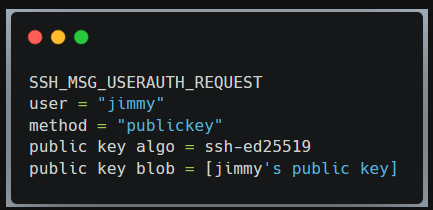 all the server needs to do is to check 2 things
- is this public key authorized to access the service (because the cline is the one who create his own private and public key) but not all clients can access the service
- is this public key valid ? by checking its private key (because someone might get to the public key somehow but still he doesn't have the private key so it would be useless)
there is a file at ~/.ssh/authorized_keys on the server that lists authorized public keys if your key is one of them the server will challenge you by sending SSH_MSG_USERAUTH_PK_OK which means prove me that you have the private key
so the client will compute the signature signature = sign(private_key, H)
it would look something like this signature = Ed25519-SIGN(private_key, auth_blob)
the H usually is Session ID + auth blob (chunk of data the SSH signs with its private key)
then the client sends signature
the private key and public key are mathematically related but you can't derive one from the another
so the SSH uses the verify function of the same algorithm valid = Ed25519-VERIFY(public_key, auth_blob, signature)
and if it is a valid private key you will get SSH_MSG_USERAUTH_SUCCESS
4 Authorization and session setup
the authorized keys file fells like an authorization process but after all it is a part of the authentication process
It's not enough to be considered a full authorization process
after getting SSH_MSG_USERAUTH_SUCCESS
SSH starts with
- Authorization checks (policy enforcement)
- AllowUsers/Groups → Allow certain users or groups, others rejected by default even with valid credentials
- DenyUsers/Groups → Deny certain users or groups
- PermiRootLogin → if set to no ssh refuses root login (that's for security's sake)
- Account expiration and lockouts, valid shells and more
- Privilege separation
- tradition model before separation → single
sshdprocess runs as root the entire session and if compromised it will be complete system compromise - Privilege Separation model → SSH creates multiple processes with different privilege levels
- SSH daemon (root) → minimal and only handles initial setup
- Privilege monitor (root) → handles authentication decisions
- Unprivileged child fork → handles network communication
- User Process fork → run with target user's privileges after authentication
- tradition model before separation → single
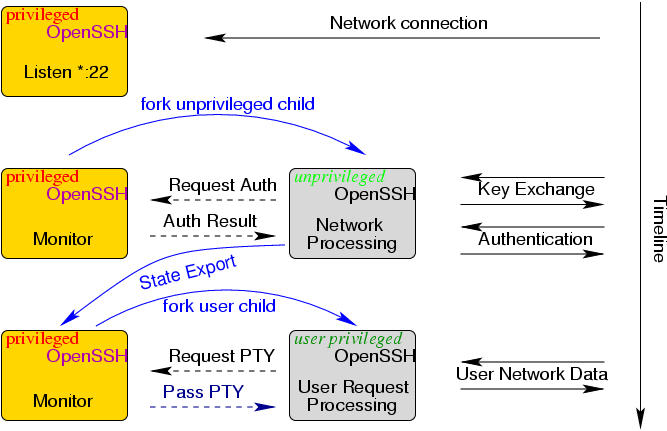 3. Session environment setup
- if pam is working
3. Session environment setup
- if pam is working pam_open_session runs
- pam_limits → resource limits
- pam_pam_mkhomedir → create home dir if missing
- Apply chroot ChrootDirectory → that's a concept applied in more than service what it does simply
- referred to as chroot jail designated directory for Unix-like Operating systems that serves as the apparent root directory for a specific process and its child processes → when the process is executed within chroot environment it is configured to that directory and can't access files or directories outside this jail
- Set umask, working directory, environment variables
if there is Message of the day exist under
/etc/motdwill be displayed at this time, last login info (enabled by default), custom banners, etc- if you are concerned about security measures it is important to make sure that this info doesn't lead to any information disclosure specially system information so try to balance between useful banners and secure banners
checks for X11 Forwarding and Agent Forwarding
- X11 forwarding is an SSH feature that allows you to run graphical applications on a remote server while displaying the GUI on your local machine
- Agent forwarding simple lets you authenticate to other servers using keys stored on your local machine but this is different than port forwarding
- this is just for authentication process not request forwarding
5 Interactive Session / Data Exchange
at this point you land in your shell or subsystem
- channel open for shell by client sending
SSH_MSG_CHANNEL_REQUEST: "shell"so server accepts and bids the channel to PTY if requested - Setup the env variables but still cares about server configs and PAM modules
- Data flow starts here
- using some of the things I've mentioned earlier that each key you click is encrypted and decrypted on the other side and response is encrypted and decrypted at your side
- multiplexing other channels if asked
6 Session Termination
client or server sends SSH_MSG_CHANNEL_CLOSE and this is per channel so if you had multiple channels opened each is closed individually
then the server and client cleans the bindings
after all channels are closed the initiator sends SSH_MSG_DISCONNECT
Resources
- https://youtu.be/NmM9HA2MQGI?si=wn5Fsx3Rj7M2Z13L
- https://linuxize.com/post/using-the-ssh-config-file/
- https://www.ssh.com/academy/ssh
That’s pretty much it, I hope this blog post has been helpful. feel free to reach out